
Bash Script Alerts: Automated System Monitoring Made Easy
In today’s fast-paced IT environments, keeping track of system performance is crucial. Automated monitoring scripts can be a great asset in detecting potential issues before they become critical. In this blog, we’ll guide you through writing a Bash script that automatically sends email alerts when certain system thresholds are exceeded.
1. Setting the Stage: Understanding Bash and Its Role in System Monitoring
Bash, or the Bourne Again SHell, plays a vital role in automating repetitive tasks and monitoring systems. With its powerful scripting capabilities, you can create scripts that keep tabs on system parameters such as CPU usage, memory consumption, and disk space. When these parameters exceed predefined thresholds, the script can trigger alerts via email. This ability to continuously monitor and alert saves administrators time and ensures systems remain healthy.
2. Configuring Email Notifications
To send emails from a Bash script, you’ll need a tool like `mailx` or `sendmail`. For our example, we’ll use `mailx`. First, ensure it’s installed on your system by running:
sudo apt-get install mailutilsThen, define the email configuration in your script. Create variables to store the email recipient, subject, and sender address:
EMAIL_RECIPIENT="admin@example.com"
EMAIL_SUBJECT="System Alert: Parameter Threshold Exceeded"
EMAIL_SENDER="monitor@example.com"
These variables allow for easy customization of the email parameters.
3. Monitoring System Metrics with Bash
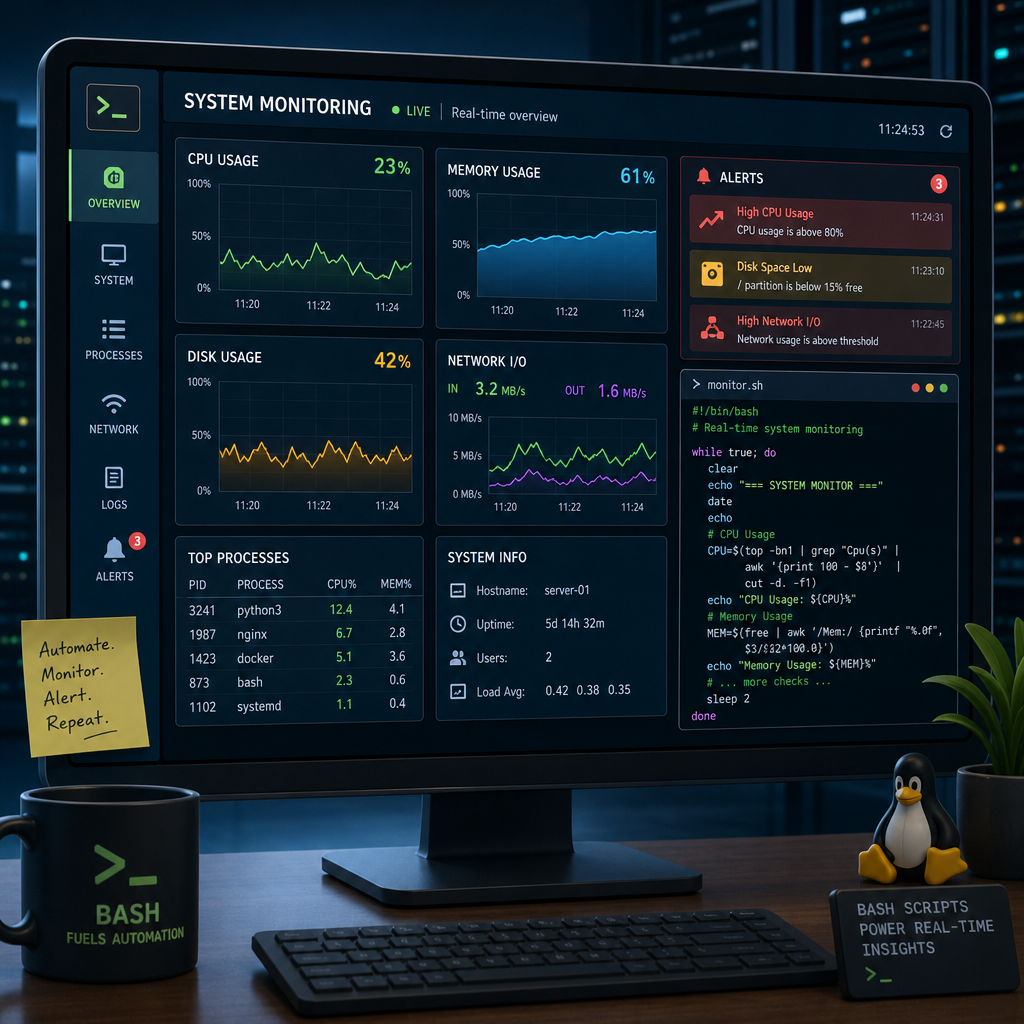
At the core of our script are commands that track system metrics. For instance, we can use `top`, `free`, and `df` to monitor CPU usage, memory usage, and disk space, respectively:
CPU_USAGE=$(top -bn1 | grep "Cpu(s)" | \
sed "s/.*, *\([0-9.]*\)%* id.*/\1/" | \
awk '{print 100 - $1}')
MEMORY_USAGE=$(free | grep Mem | awk '{print $3/$2 * 100.0}')
DISK_USAGE=$(df -h / | grep / | awk '{print $5}' | sed 's/%//')
These commands extract the current state of resource usage, which we’ll use to determine if alerts are necessary.
4. Implementing Thresholds and Triggering Alerts
To trigger alerts, we need to compare the current metrics against preset thresholds. Let’s define these thresholds and include logic to send an email when they’re exceeded:
CPU_THRESHOLD=75.0
MEMORY_THRESHOLD=80.0
DISK_THRESHOLD=85

if (( $(echo "$CPU_USAGE > $CPU_THRESHOLD" | bc -l) )); then
  echo "CPU usage is above threshold: $CPU_USAGE%" | mailx -s "$EMAIL_SUBJECT" -r "$EMAIL_SENDER" "$EMAIL_RECIPIENT"
fi

if (( $(echo "$MEMORY_USAGE > $MEMORY_THRESHOLD" | bc -l) )); then
  echo "Memory usage is above threshold: $MEMORY_USAGE%" | mailx -s "$EMAIL_SUBJECT" -r "$EMAIL_SENDER" "$EMAIL_RECIPIENT"
fi

if (( "$DISK_USAGE" > "$DISK_THRESHOLD" )); then
  echo "Disk usage is above threshold: $DISK_USAGE%" | mailx -s "$EMAIL_SUBJECT" -r "$EMAIL_SENDER" "$EMAIL_RECIPIENT"
fi
This script checks if the system metrics exceed their respective thresholds and sends an email alert when they do.
5. Scheduling the Script with Cron
To ensure continuous monitoring, you can schedule this script to run at regular intervals using cron jobs. Here’s how you can set it up to run every five minutes:
crontab -e
*/5 * * * * /path/to/your/script.sh
This cron expression means the script will execute every five minutes, allowing close to real-time monitoring of your system.
In conclusion, Bash scripts offer a powerful way to automate system monitoring and alerting. By following this guide, you can easily track critical system parameters and receive timely notifications, ensuring the reliability and performance of your systems.
Useful links: