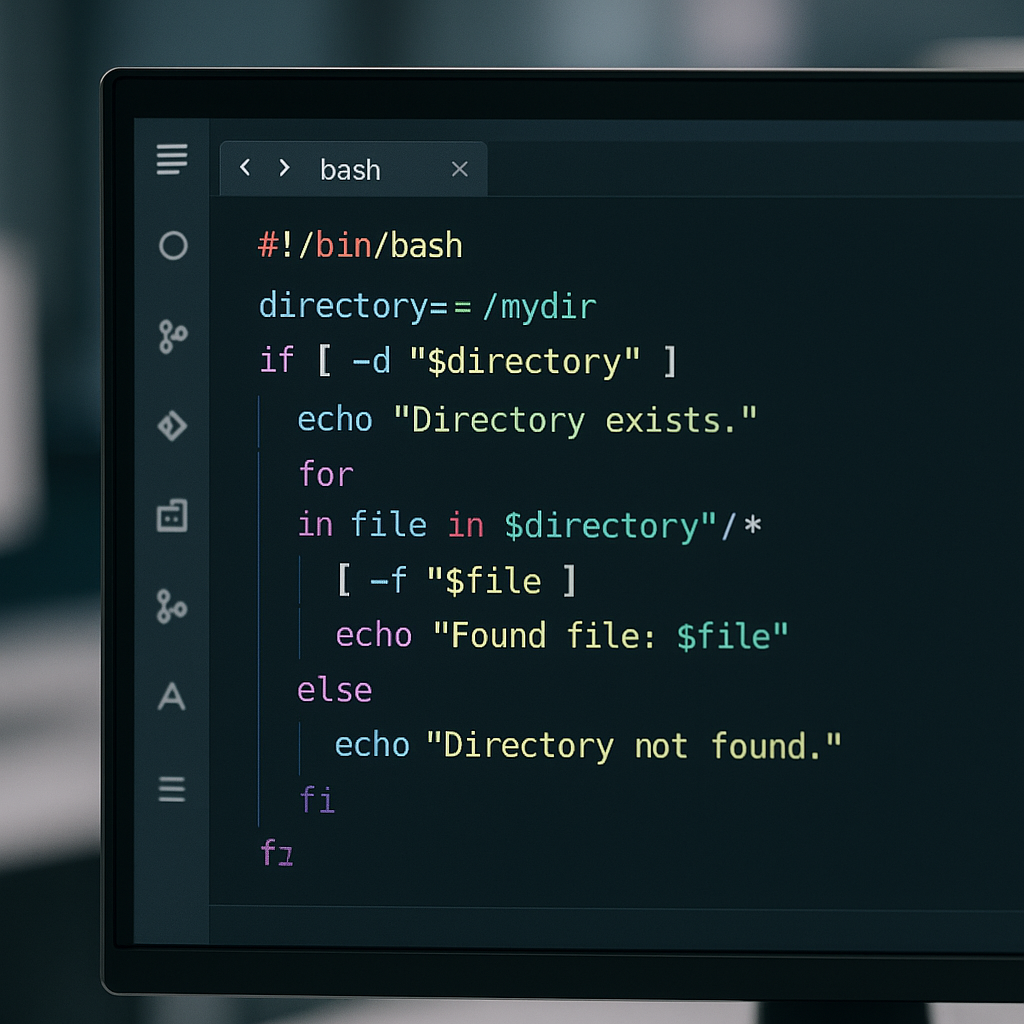

Bash Automation: Streamline File Management with Shell Scripts
File management is an essential part of any software development workflow, and using Bash for automating this task can save developers a significant amount of time. This article will guide you through creating a Bash script that organizes files into directories based on their type, demonstrating useful shell scripting techniques for automating repetitive file management tasks.
Introduction to Bash Automation
Bash, or the Bourne Again SHell, is a powerful scripting language capable of automating system tasks. It runs commands directly on the Unix shell, making it ideal for scenarios where production environments require streamlined, automated solutions without additional overhead.
Understanding File Classification
Before diving into code, it’s vital to understand how to classify files. Files typically have extensions like .txt for text files, .jpg for images, and so on. This extension can be used to determine the type of a file. In this project, we will use these extensions to organize files into respective folders.
Writing the Bash Script
Let’s create a Bash script to automate file organization. The script will iterate through a directory, check each file’s extension, and move it to a corresponding directory.
#!/bin/bash

# Define the directory you want to organize
dir_to_organize="/path/to/your/directory"

# Move into the given directory
cd "$dir_to_organize"

# Loop through files and organize them by extension
for file in *.*; do
  # Get the file extension
  ext="${file##*.}"

  # Check if directory for the extension exists, if not create it
  if [ ! -d "$ext" ]; then
    mkdir "$ext"
  fi

  # Move the file into the extension-named directory
  mv "$file" "$ext/"
done
This script works by utilizing Bash parameter expansion to extract the file extension and organize it accordingly. Ensure that dir_to_organize is set to the correct path where your files reside.
Why This Script Works
This solution efficiently addresses the file organization problem by relying on simple Bash built-in commands. Parameter expansion, conditionals, and looping constructs help achieve the task with minimal processing overhead.
Optimization and Enhancement Tips
While the simple script is effective, there are several ways to enhance it:
- Safety Check: Add checks to ensure that non-file entities (like directories) are not processed incorrectly.
- Error Handling: Use set -e to stop execution if an error occurs, helping avoid partial results and improving script reliability.
- Performance Improvement: Use xargs with mv for batch processing of files to increase performance with large sets.
By keeping these enhancements in mind, the script can be adapted to more complex and large-scale file organization tasks, offering even greater flexibility and power in file management automation.
Useful links: