
Creating Dynamic Forms in ReactJS Simplified
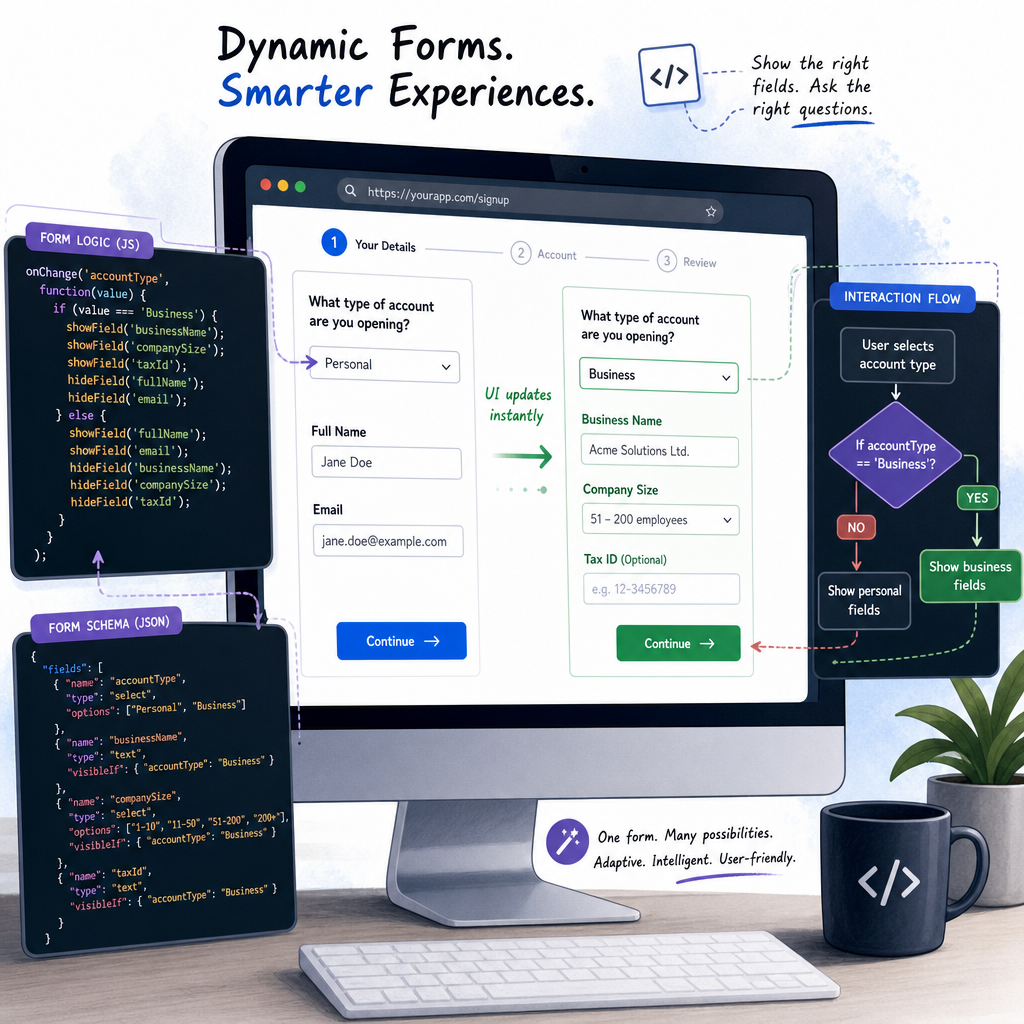
Dynamic forms are an essential aspect of modern web applications, providing a user-friendly experience by updating input fields based on user interactions and backend responses. This article walks through the process of building dynamic forms in ReactJS, leveraging its powerful component model and state management system.
1. Setting Up the Project
To get started, you’ll want to create a new ReactJS project using Create React App for its seamless setup and configuration:
npx create-react-app dynamic-react-formsNext, navigate into your project directory:
cd dynamic-react-formsYour project is now ready for you to start developing. Let’s move on to building the basic form structure.
2. Creating the Basic Form Component
Start by creating a functional component, DynamicForm, in the src directory. This component will serve as the foundation for our dynamic form:
import React, { useState } from 'react';

function DynamicForm() {
  const [formValues, setFormValues] = useState({});

  const handleChange = (event) => {
    setFormValues({
      ...formValues,
      [event.target.name]: event.target.value
    });
  };

  return (
    <form>
      <input
        type="text"
        name="name"
        placeholder="Enter your name"
        onChange={handleChange}
      />
      <input
        type="email"
        name="email"
        placeholder="Enter your email"
        onChange={handleChange}
      />
    </form>
  );
}

export default DynamicForm;
Here, we use useState for managing the form values state. handleChange is a function that updates the state based on the user’s input. This sets a strong foundation for the form’s dynamism.
3. Adding Dynamic Input Fields
To dynamically add input fields, use an array in the state and map over it to render input elements on the interface:
const [inputFields, setInputFields] = useState([
  { name: '', email: '' }
]);

const handleAddField = () => {
  setInputFields([...inputFields, { name: '', email: '' }]);
};

return (
  <form>
    {inputFields.map((inputField, index) => (
      <div key={index}>
        <input
          type="text"
          name="name"
          value={inputField.name}
          onChange={event => handleInputChange(index, event)}
        />
        <input
          type="email"
          name="email"
          value={inputField.email}
          onChange={event => handleInputChange(index, event)}
        />
      </div>
    ))}
    <button type="button" onClick={handleAddField}>Add More</button>
  </form>
);
This allows us to individually manage each set of input fields. You can extend these functionalities as needed based on your application requirements.
4. Handling Dynamic Backend Responses
To make your form truly dynamic, it should adapt not only to user input but also to dynamic data, particularly from backend responses. Let’s simulate this with an API call and dynamically adjust fields:
useEffect(() => {
  fetch('/api/form-config')
    .then(response => response.json())
    .then(data => {
      // Example backend structure that sends form fields configuration
      setInputFields(data.fields);
    });
}, []);
With useEffect, this code snippet fetches field configurations from a backend service and updates the form’s inputs accordingly. Be sure to handle successful and error responses appropriately in a production environment.
5. Performance Considerations
Dynamic forms can grow complex quickly, potentially impacting performance. To mitigate this, consider:
- Leveraging
React.memooruseMemoto optimize rendering. - Batching state updates using functional reactions.
- Using libraries like
FormikorReact Hook Formfor advanced form management.
Implementing these strategies will keep your application responsive and user-friendly, even as the complexity of your dynamic forms increases.
Useful links: