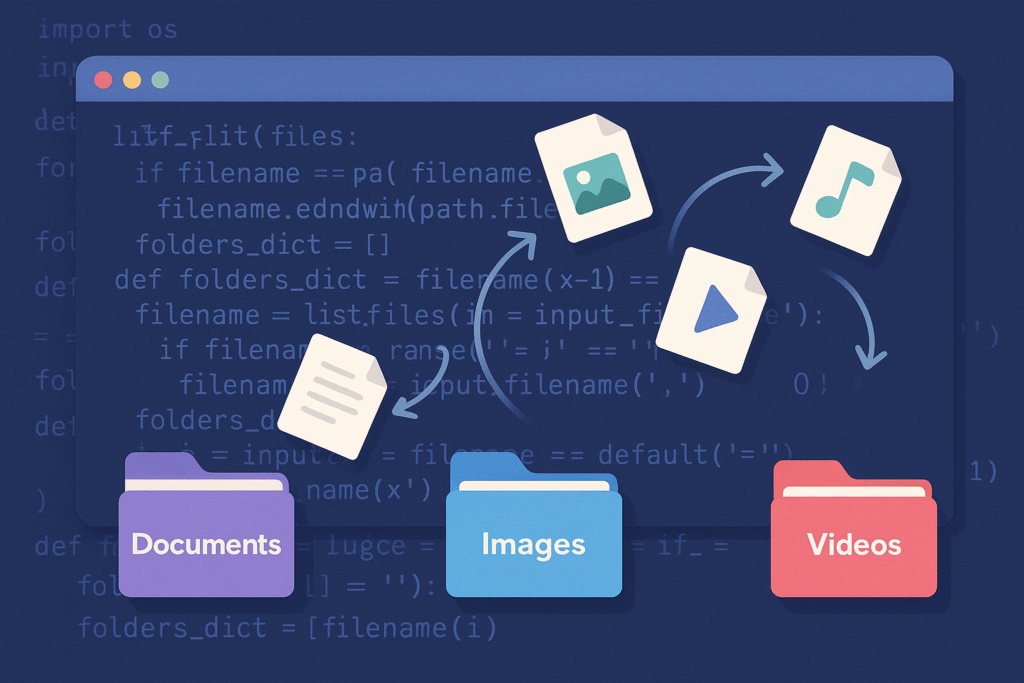

Efficiently Automating File Organization in Python: Patterns, Strategies, and Snippets
Keeping your files organized—whether on a personal workstation or in a shared workspace—is a constant challenge for developers. Manual sorting is tedious and error-prone, especially as the number and types of files grow. In this article, we’ll explore how to automate file organization using Python, walking through realistic patterns like sorting by file type, date, and even custom rules. Our discussion will use practical code, real-world automation tips, and highlight performance and best practices at every step.
1. Why Automate File Organization?
Manual file management quickly becomes unsustainable for developers, data analysts, DevOps engineers, and anyone managing codebases or data directories. Automation:
- Saves time and reduces human error
- Enforces consistent organizational structure
- Integrates easily with backup or deployment workflows
- Improves searchability and data hygiene
Python, with its robust built-in libraries (os, shutil, pathlib) and rich ecosystem, is the perfect tool for scripting these automations.
2. Core Python Tools for File Management
To begin, let’s set up a simple Python script to list, move, and rename files using modern, cross-platform libraries. The pathlib library is especially handy for manipulating paths intuitively.
from pathlib import Path
import shutil

source_dir = Path('Downloads')
dest_dir = Path('Documents/Organized')
dest_dir.mkdir(parents=True, exist_ok=True)

for item in source_dir.iterdir():
    if item.is_file():
        shutil.move(str(item), dest_dir / item.name)
How & Why: We use Path.iterdir() for performance and readability, and shutil.move() to relocate files. The mkdir(..., exist_ok=True) ensures target folders are created only if necessary.
3. Sorting Files by Type (Extension-Based Organization)
Developers often want PDFs, images, spreadsheets, and archives in separate folders. Let’s automate this based on file extension.
file_types = {
    'images': ['.png', '.jpg', '.jpeg', '.gif', '.bmp'],
    'docs': ['.pdf', '.docx', '.txt'],
    'spreadsheets': ['.xls', '.xlsx', '.csv'],
    'archives': ['.zip', '.tar', '.gz']
}

def get_category(extension):
    for category, exts in file_types.items():
        if extension.lower() in exts:
            return category
    return 'others'

for item in source_dir.iterdir():
    if item.is_file():
        category = get_category(item.suffix)
        category_dir = dest_dir / category
        category_dir.mkdir(exist_ok=True)
        shutil.move(str(item), category_dir / item.name)
Performance Tip: Predefine extensions in sets for O(1) lookups if organizing extremely large folders. This also makes it easy to update accepted file types as needs change.
4. Organizing by Date: Chronological Structuring
For logs, downloads, or project files, chronological organization (by year, month, or day) is crucial. Let’s sort files by their modification date.
import datetime

def get_date_folder(file_path):
    mtime = file_path.stat().st_mtime
    dt = datetime.datetime.fromtimestamp(mtime)
    return f"{dt.year}-{dt.month:02d}"

for item in source_dir.iterdir():
    if item.is_file():
        date_folder = dest_dir / get_date_folder(item)
        date_folder.mkdir(exist_ok=True)
        shutil.move(str(item), date_folder / item.name)
This approach leverages file system metadata and sorts files into folders like 2024-06. You can easily modify this granularity (e.g., only years or add days).
5. Custom Rules: Combining Criteria & Handling Collisions
Advanced scenarios may require combining type and date, or even more custom logic—perhaps based on filename patterns (e.g., invoices, test results) or user tags. Let’s combine extension-based and date-based organization, and handle filename conflicts gracefully:
def unique_filename(target_dir, filename):
    base = filename.stem
    ext = filename.suffix
    counter = 1
    candidate = target_dir / filename.name
    while candidate.exists():
        candidate = target_dir / f"{base}_{counter}{ext}"
        counter += 1
    return candidate

for item in source_dir.iterdir():
    if item.is_file():
        category = get_category(item.suffix)
        date_folder = get_date_folder(item)
        target = dest_dir / category / date_folder
        target.mkdir(parents=True, exist_ok=True)
        dest_file = unique_filename(target, item.name)
        shutil.move(str(item), dest_file)
This logic builds a nested folder structure, such as Documents/Organized/docs/2024-06/invoice.pdf. The unique_filename function prevents overwriting by appending a counter.
6. Best Practices, Automation Tips & Integration
Performance: For huge directories, consider batching moves, catching exceptions for locked or in-use files, and using process pools (via concurrent.futures) for parallel moves.
Automation: Set your script to run periodically (e.g., via OS schedulers like cron or Task Scheduler), or listen to file system events using watchdog for real-time organization.
Safety: Always test on sample folders, use logging, and optionally use file copy instead of move for the first run. Add error handling for permission issues and non-ASCII filenames.
Extensibility: The pattern supports easy integration into backup, sync, or CI pipelines.
Conclusion
Automating file organization with Python saves hours and brings order to digital chaos. Whether you’re a developer wrangling docs, a sysadmin managing data drops, or just automating personal workflows, these code patterns and best practices will help you build robust, efficient solutions. Experiment, adapt rules to your needs, and watch your folders stay consistently tidy!
Useful links: